
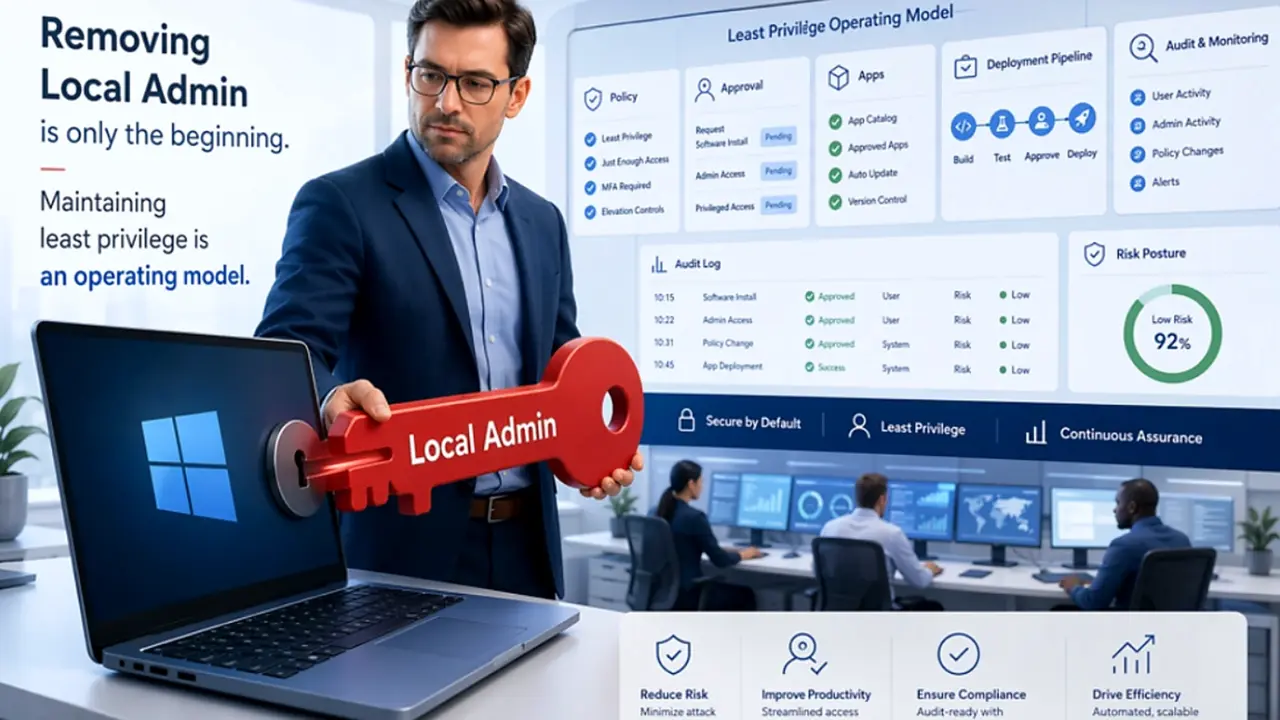
The first real test of a least privilege program usually is not technical. It is operational.
It shows up when a user needs one tool right now and nobody is sure how they are supposed to get it. A script will not run. A driver update is blocked. A debugging utility is missing. Helpdesk tickets pile up, exceptions spread, and within days the new control is no longer being talked about as a security improvement. It is the thing that slowed everyone down.
That is where teams learn the hard part: removing standing local admin rights is one change. Keeping them removed is an operating model.
This article focuses on Windows endpoints managed with Microsoft Intune. In that environment, Microsoft Intune Endpoint Privilege Management, or EPM, gives organizations a way to keep users as standard users by default while still allowing approved tasks to run with elevation. Microsoft controls EPM through elevation settings policies and elevation rules policies.
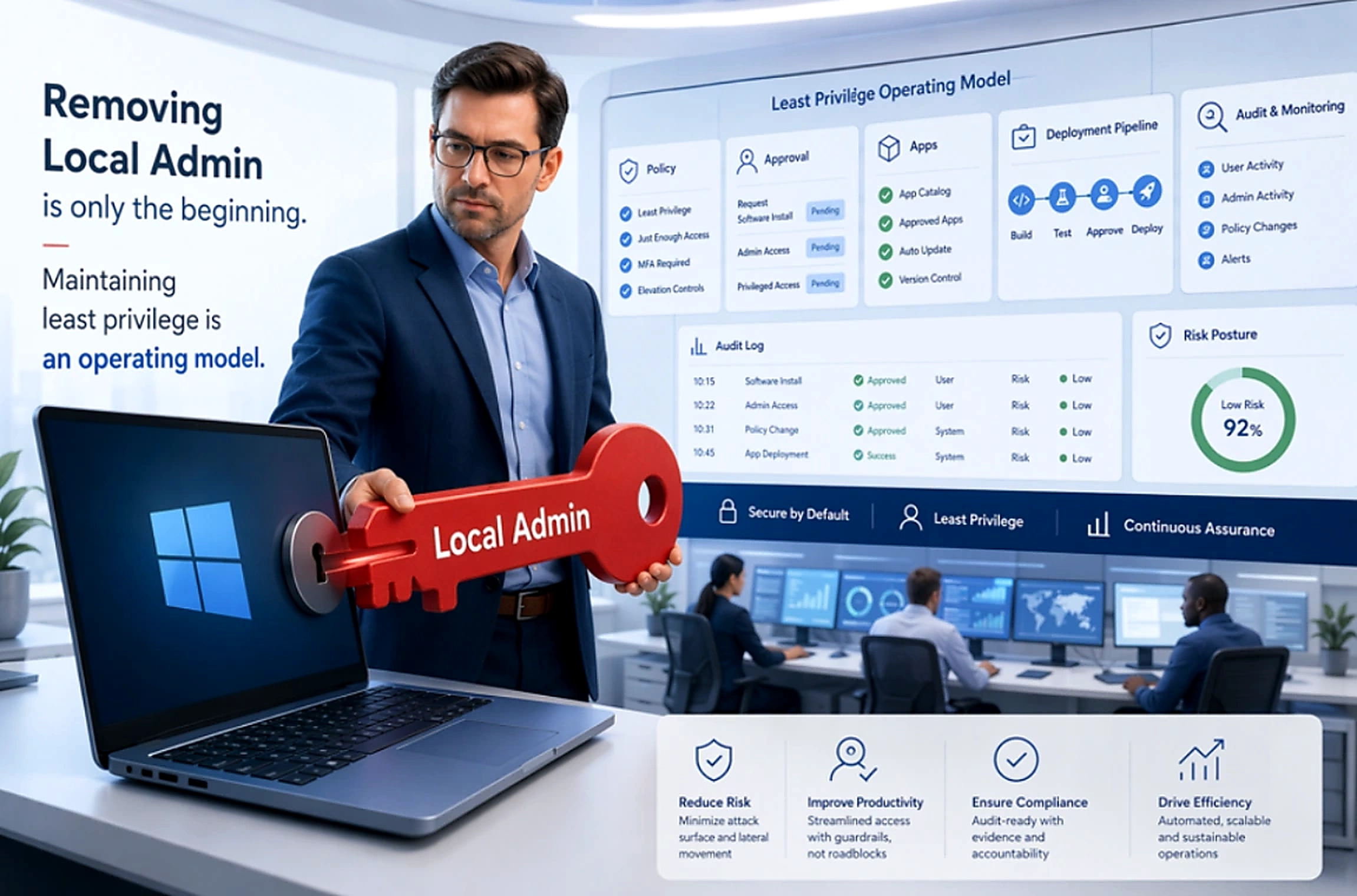
Least privilege is not a one-time project
Revoking broad local admin rights is the visible milestone. It feels like the big move. It usually is not the hard part.
The harder part is building a process that still lets people work when they have a legitimate reason to elevate something. Microsoft Intune Endpoint Privilege Management is built for that gap. It can allow approved files and scripts to run elevated under policy control, with auditing and reporting around what happened.
For most elevation types, EPM uses a virtual account isolated from the signed in user’s profile. The exception is Elevate as Current User, which runs the elevated process under the signed-in user’s account. This keeps the user context and preserves compatibility with tools that rely on the active user profile.
That distinction matters. In a mature least privilege design, user admin rights, the local Administrators group, and a separate local administrator account for recovery are not treated as the same thing (EPM achieves this without adding any account to the local Administrators group.) The goal is not to remove every possible administrative path from a device. The goal is to remove standing user privilege and replace it with controlled, auditable elevation.
EPM helps, but it does not run the program for you
EPM is the privilege control layer. It is not the whole least privilege program.
Used well, it lets you move users to standard access without blocking normal work. Used poorly, it becomes a ticket machine. If every reasonable action needs an exception, people will find a workaround. If approved software has no clean delivery path, support-approved elevation quietly becomes your packaging process.
That is why least privilege at scale needs more than one control. EPM decides who can elevate what and under which conditions. The operating model around it decides how software reaches users, how requests are reviewed, and how the environment is watched after elevation is allowed.
Microsoft positions EPM as part of a wider Zero Trust journey. That framing is right. It is not a standalone answer to endpoint security.
Be careful with licensing and availability
Licensing language around least privilege needs to be precise because entitlement and rollout are not the same thing.
Microsoft announced in December 2025 that Endpoint Privilege Management, Enterprise Application Management, and Microsoft Cloud PKI would be added to Microsoft 365 E5. The new capabilities were expected to begin rolling out in CY26 Q3, with customers receiving a 30-day Message Center notice before the update becomes available in their tenant.
So the right guidance is not “this is available everywhere on one date.” The safer guidance is: check your tenant and the current Microsoft licensing documentation before building a rollout plan around it.
That nuance matters. A feature can be part of the Microsoft 365 E5 direction without appearing in every tenant on the same day.
Start with discovery, then expand in rings
The strongest least privilege rollouts do not start with a long list of rules. They start by watching what users actually try to do.
In Intune, EPM reporting is available through the Overview tab and the Reports tab. Microsoft describes the Overview tab as a readiness dashboard; its information tiles reflect the last 48 hours of elevation activity. The Reports tab is where deeper pattern analysis happens: data there is retained for 30 days and processed once every 24 hours.
That means a pilot should run long enough to show real patterns in the Reports tab. A few hours of activity will not tell you much, and even a full day may not reflect typical behavior.
A practical rollout looks something like this:
- Enable EPM for a small Windows pilot.
- Start with conservative defaults and collect reporting.
- Review what users are trying to elevate.
- Build rules for the common, legitimate cases first.
- Expand by ring instead of flipping the whole fleet at once.
This does two useful things. It reduces friction for users, and it stops the first set of rules from being based on guesswork.
Design elevation paths around risk
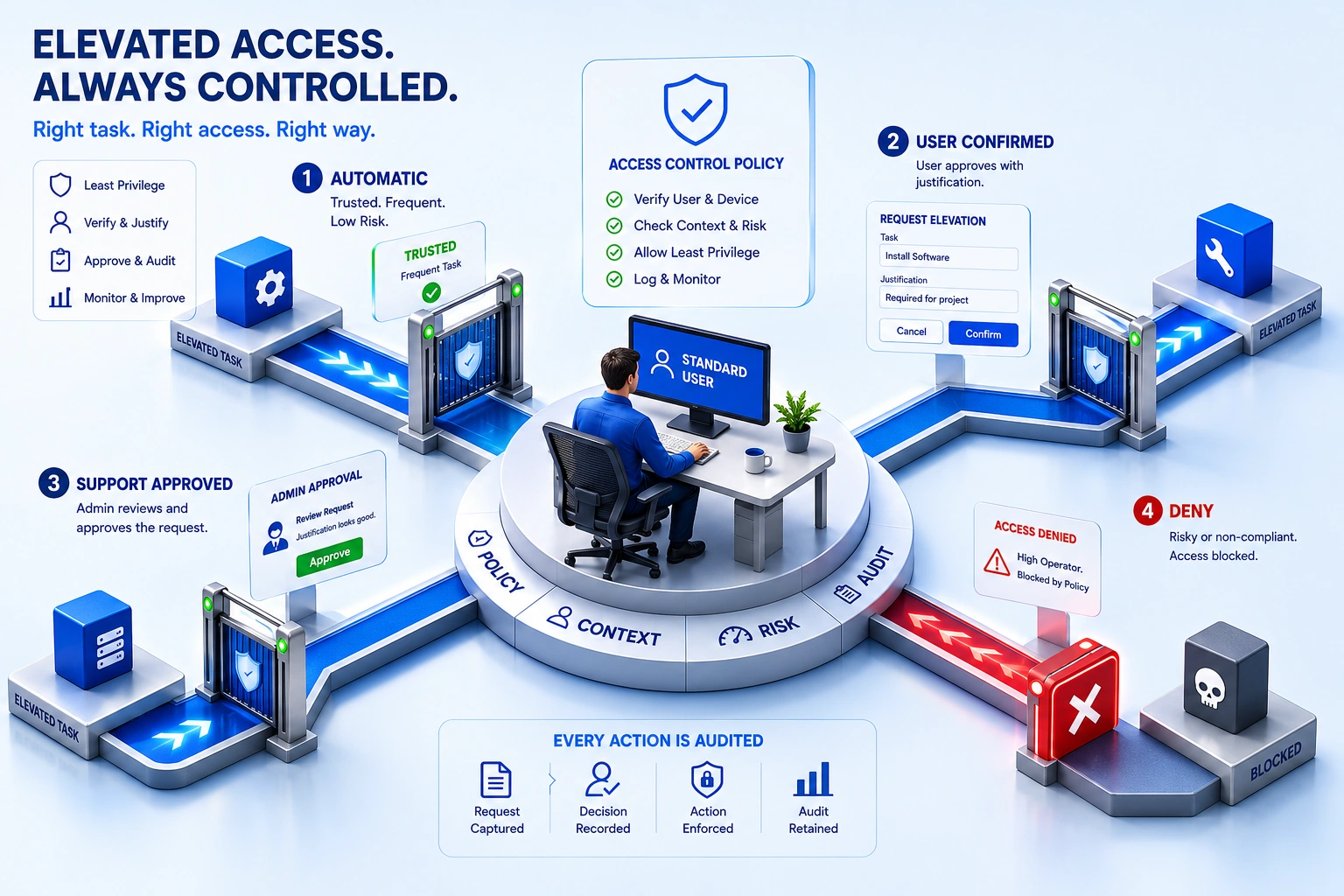
EPM gives you several elevation types. The hard part is choosing the right one for the job.
Automatic elevation can make sense for frequent, trusted, business critical actions. But Microsoft warns that broad automatic rules can have wide security impact, so this should not become the default for convenience.
User confirmed elevation is a better fit for common but lower risk actions. It gives the user a controlled prompt and can require a business justification, Windows authentication, or both.
Support approved elevation is better for sensitive or unusual actions. Those requests go to an administrator for review.
Deny exists for a reason and takes precedence over all other elevation types. If a file matches both an allow rule and a deny rule, the deny rule wins. Use it for files that should never run elevated.
This is where many least privilege programs go wrong. They treat every action as equally risky, so safe routine tasks become as painful as rare dangerous ones. A better design makes safe work easy, risky work visible, and unsupported work impossible.
Use the strongest rule you can support
Rule design is where vague writing turns into real operational pain.
Microsoft’s current guidance is direct on several points:
- File hash rules give the strongest assurance that the file being elevated is exactly the file you intended. For automatic elevation, a hash is required – there is no alternative. For user confirmed and elevate as current user rules, a hash is optional; you can use a certificate instead.
- Automatic elevation rules require a file hash.
- Certificate rules are useful, but they should be paired with other attributes, such as product name, internal name, and description.
- File paths should point to locations standard users cannot modify.
- Microsoft does not recommend using only a certificate and file name because any standard user who can write to the directory can rename a file signed by the same certificate to match the rule. This may not be a concern if the file resides in a write-protected directory.
In practice, “publisher certificate plus name” is too loose for serious guidance. Use the narrowest reliable rule that fits the scenario. Treat broad matches as exceptions, not defaults.
Use Elevate as Current User on purpose
The feature is called Elevate as Current User, and the name matters.
Most EPM elevation types run through a virtual account. That helps isolate elevated actions from the user’s own profile. But some applications do not behave well under that model. Developer tools, installers, and utilities that rely on profile paths, environment variables, or user specific settings may break.
Elevate as Current User exists for those cases. It runs the elevated process under the signed in user’s account.
The tradeoff is real. This mode improves compatibility, but it also inherits the user’s full context. That broadens the attack surface and reduces isolation from user data.
Use it when the virtual account model breaks the application. When you do, scope the rule tightly.
Support-approved elevation needs a workflow
Support-approved elevation is often described as just another setting. It is more than that. It is a helpdesk workflow.
Users can submit an elevation request from the device and include a business reason. An Intune admin then needs a role with the appropriate Endpoint Privilege Management permissions – such as the built-in Endpoint Privilege Manager or Endpoint Privilege Reader role – to review and act on those requests. Administrators only see requests within their configured scope.
That means the workflow needs answers before rollout:
- Who reviews requests?
- What response time is expected?
- How are requests scoped?
- Which administrators have the right Intune permissions?
Without those answers, support-approved elevation is not an approval path. It is a backlog waiting to happen.
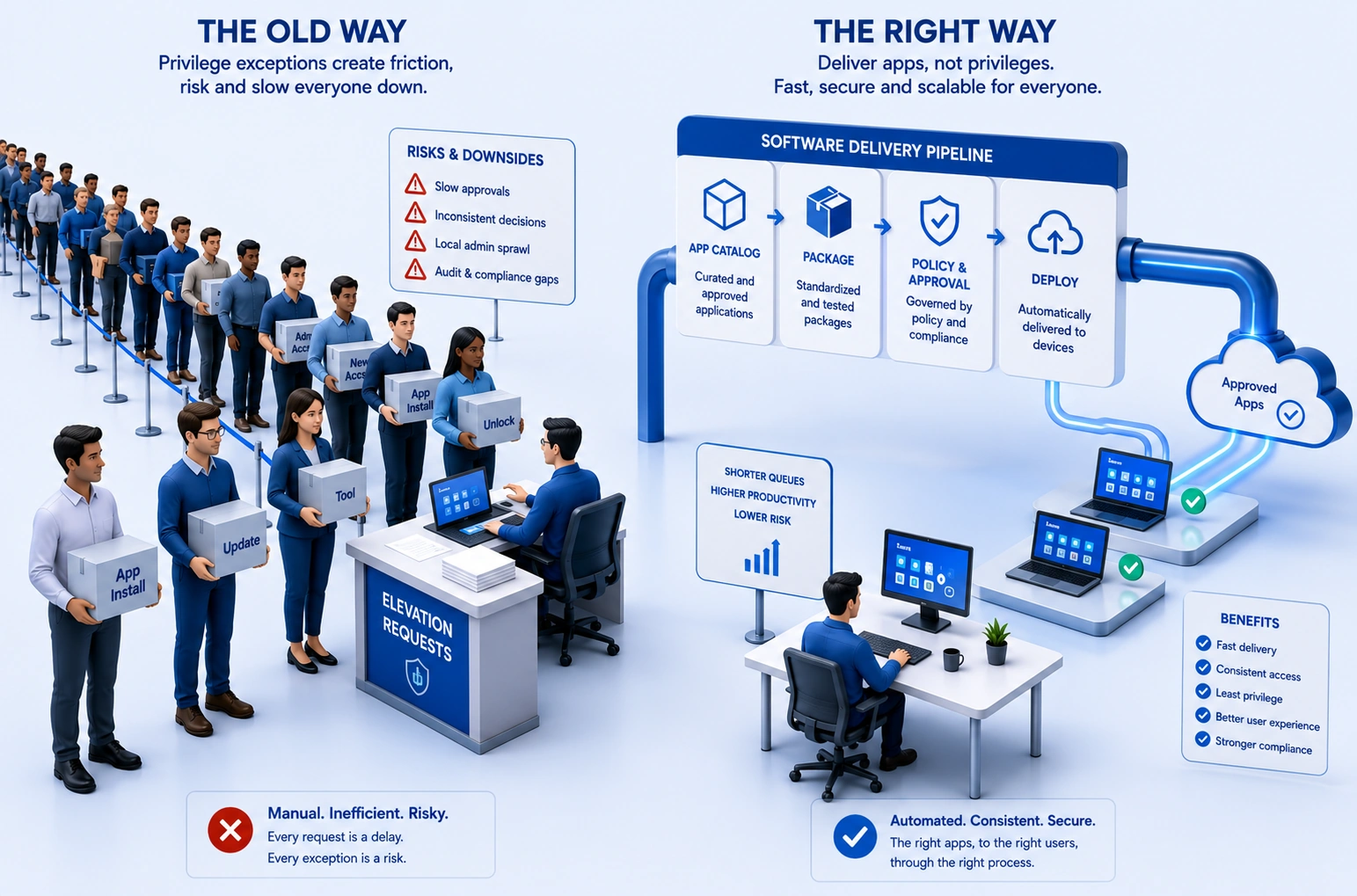
Reduce elevation demand with better app delivery
A lot of elevation traffic is self-inflicted.
When users keep requesting the same approved applications, that is usually not an elevation problem. It is an app delivery problem.
The Microsoft terms matter here. Windows Package Manager, or WinGet, is the Windows package manager and command line tool for discovering, installing, upgrading, removing, and configuring applications.
Microsoft Intune Enterprise Application Management is different. It lets administrators discover and deploy applications from the Enterprise App Catalog, a Microsoft hosted catalog of prepared Win32 applications with prepopulated install, uninstall, detection, and requirement settings.
Those are not the same product. They should not be written as if they are.
In practice, they can work together. Use Enterprise Application Management where the Microsoft catalog fits. Use normal Win32 packaging when you need custom handling. Use WinGet deliberately where command line package workflows make sense.
The point is not to force every install path into one model. The point is to keep routine, legitimate app demand out of the privilege exception queue.
Run least privilege as an ongoing service
Least privilege holds when it is reviewed continuously. Not when it is declared finished.
EPM reporting gives visibility into managed and unmanaged elevation. The Overview tab is designed as a readiness dashboard for moving local admin users to standard users. With daily processing and 30-day retention, there is enough signal for a weekly operational review without changing policy every day.
That review should focus on two questions:
- What are users still trying to elevate that should be solved another way?
- Which existing rules are broader than they need to be?
That is the routine that keeps least privilege from drifting backward into broad local admin rights or forward into unbearable support friction.
Measure security and productivity together
A least privilege program that only reports security metrics is missing half the picture.
The security measures matter: fewer users with standing local admin rights, fewer unmanaged elevations, fewer risky exceptions.
But the operational measures matter too. How many routine requests disappeared because software delivery improved? How quickly are sensitive requests reviewed? Can developers and engineers still do normal work without inventing side channels?
If security improves on paper while user friction becomes intolerable, the risk has not gone away. It has moved into workarounds, shadow IT, and undocumented exceptions.
The point
The goal is not zero elevation.
The goal is controlled, visible, measurable elevation on Windows devices managed with Microsoft Intune. Users stay standard by default. Approved work gets elevated through the right path. Strong rules protect what actually runs. Reporting shows what the environment is doing, not what everyone hoped it was doing.
Get that right, and least privilege stops feeling like a restriction imposed by security. It becomes part of how the endpoint platform works.
That is when removing local admin stops being the headline. Maintaining least privilege becomes the habit.
The views and opinions expressed in this article are strictly my own and do not represent the official policy or position of my employer, Microsoft Corporation.