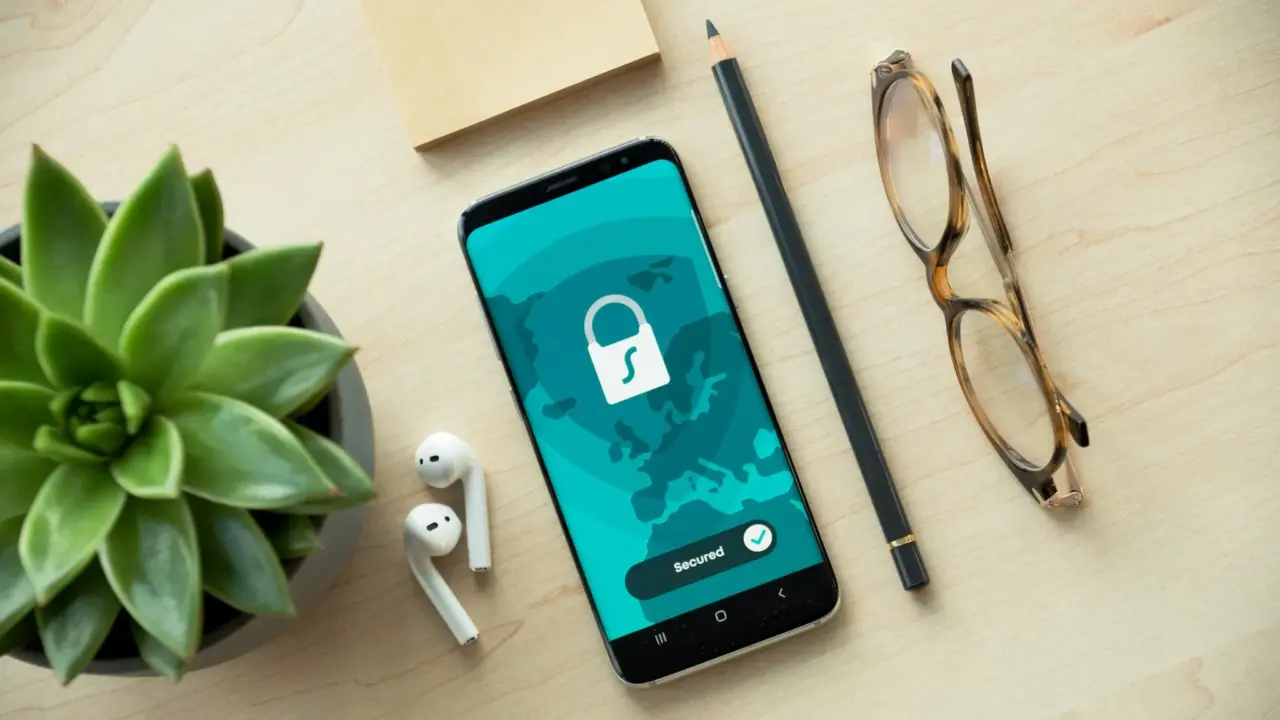
Your phone is much more than just a phone now. It stores your email, banking apps, photos, messages, passwords, location history, and often the way to recover your other accounts.
Securing it does not mean being paranoid; it just takes a few habits to close the most obvious gaps. The best part is that the most effective protections are also the easiest: lock your device well, keep it updated, control what apps can access, protect your accounts, and get ready in case your phone goes missing.
The FTC’s consumer guide, How To Protect Your Phone From Hackers, starts with the basics: lock your phone and use at least a six-digit passcode. This might seem obvious, but many phone breaches still happen because of physical access, weak account security, or careless permissions, not just advanced spyware.
Start with the lock screen, because everything else depends on it
The easiest way to make your phone safer is to make it harder for others to unlock. The FTC recommends setting your phone to lock when not in use and creating a PIN or passcode, with at least six digits.
A newer FTC alert says longer passcodes are even better, and most phones still let you use fingerprint or face unlock after setting a passcode. The main idea is simple: biometrics are convenient, but the passcode is what really protects your phone.
If someone steals your phone, a strong screen lock is often the only thing stopping them from getting into your email, payment apps, and private data.
This security step might seem basic, but it is important when you think about everything your phone does. Your phone often holds password-reset links, banking alerts, verification codes, and app sessions all in one place.
If your lock screen is weak, your overall security is weaker than it seems. That is why this first step is not just for show—it is essential.
Update the phone even when it is inconvenient
Waiting for your phone to update can be annoying, but missing a security patch is much worse.
The FTC says that when you notice an update is available, you should run it promptly because those updates can include critical security patches.
Google’s broader security guidance also recommends keeping devices up to date, and Apple says that for its highest-risk protection feature, for a complete set of protections, you should update all of your devices to the latest software.
This matters because attackers often move faster than users. Once a flaw becomes known, the window between disclosure and real-world abuse can be shorter than many people expect.
In reality, keeping your phone updated means updating more than just the operating system. You should also update your apps, especially browsers, messaging apps, and anything that deals with money or your identity.
Many phone hacks do not need you to install malware; sometimes, just using an old version of software with known problems is enough.
Protect the accounts behind the phone, especially email
Even if your phone is secure, weak account protection still leaves you at risk. Your email account is usually the most important, since it is often used to reset other accounts.
Google says its 2-Step Verification tools help keep out anyone who shouldn’t have access by requiring a secondary authentication process on top of your username and password.
The FTC gives similar advice, saying to use a strong password and enable two-factor authentication (2FA) on sensitive accounts such as email or financial accounts.
This is worth emphasizing: if an attacker gets your email, they can often work outward from there, resetting other accounts and taking over services that never had much direct security of their own.
Be choosy about apps — and do not treat sideloading casually
Many phone risks come from apps—not because every app is bad, but because apps often ask for a lot of access. Google’s Play Protect checks apps and devices for harmful behavior, runs safety checks on Play Store apps, checks apps from other sources, warns about unsafe apps, and can even remove them automatically.
Play Protect is on by default, and Google recommends keeping it that way. This shows that Android treats app vetting as a key defense.
The same guidance says that apps from outside Google Play may be scanned because they can be potentially harmful, and sometimes even calls them malware.
Not every sideloaded app is dangerous, but installing apps from outside the store is riskier than using the app store. Security problems often look like convenience—a special app, a modified installer, a cleaner, a cracked tool, or an attachment asking for lots of permissions.
If you do not need an app, do not install it. If you do, make sure you know where it came from.
Audit permissions like they matter, because they do
Even a secure phone can leak information if the wrong apps have too much access. Google’s Android permissions help page says apps may ask for access to your camera, contacts, files, health data, location, microphone, photos and videos, SMS, and nearby devices.
It also points to Permission manager, where you can review permissions by app or by type. Just because an app asks for access does not mean it should keep it forever.
Google’s guidance goes further: for location, camera, and microphone, users may be able to choose “Allow only while using the app,” “Ask every time,” or “Don’t allow.”
It also says Android can pause app activity if unused, and Google Play Protect may reset permissions for apps you rarely use.
The security lesson is clear: fewer permissions mean less damage if an app turns out to be invasive, compromised, or simply over-collecting.
The FTC makes the same privacy point from the consumer side, advising people to go to their smartphone’s privacy settings to see what information apps can access and to consider turning off unnecessary permissions or deleting apps that request more access than they need to function.
Treat wireless convenience as an attack surface
Phones are built for convenience: Wi-Fi, Bluetooth, NFC, location, syncing. But convenience creates openings. NSA’s mobile device best practices guidance tells users to turn off unused wireless communications such as Bluetooth, NFC, and Wi-Fi, and says “Do not connect to open Wi-Fi networks.”
That advice may sound old-fashioned, but it remains relevant because insecure networks and unnecessary radio exposure create extra ways for attackers, rogue access points, or opportunistic snoops to interact with your device.
This does not mean you have to keep everything turned off all the time. It just means your phone should not share more than it needs to.
If you are not using Bluetooth accessories, hotspotting, or public Wi-Fi, you can turn those features off. Being careful with these settings often makes your phone less exposed to attacks.
Prepare for loss before loss happens
Even if your phone is secure, it can still get lost. That is why having recovery tools is important.
Apple’s Find My support page says users can use the Find My app or iCloud.com/find to help locate a lost iPhone, and that if you think the phone is stolen, you can lock it to protect your information.
Google says its Find Hub lets you find, lock, erase or play a sound on a lost Android device, and Android Help says that if Find Hub is on, you can ring, locate, secure, and erase a lost device.
The security value here is not just recovery. It is containment. If the phone is gone, your next priority is to stop it becoming a gateway into everything else.
Backups are important here too. The FTC recommends backing up your phone regularly so you can still access your information if you lose it. Backing up may not be exciting, but it makes a big difference.
Without a backup, a stolen or wiped phone is both a security problem and a data-loss disaster. With a backup, you can at least avoid losing your data for good.
If you face a higher level of risk, use the extreme protections
Most people do not need the most restrictive security settings available. But some people do. Apple says Lockdown Mode is designed for the very small number of individual users who might be targeted by extreme cyber attacks.
It also says Lockdown Mode prevents devices from automatically joining non-secure Wi-Fi, blocks new configuration profiles, and applies broader restrictions that reduce the effectiveness of sophisticated spyware-style attacks.
Lockdown Mode is a good reminder that phone security is not the same for everyone. Journalists, activists, executives, or political targets may need different settings than most people.
The key point is not that everyone should use it, but that stronger options are available if your risk level changes.
The simplest version of phone security
Here is the short version: use a strong passcode, update your phone quickly, turn on 2FA for important accounts, install apps carefully, limit permissions, avoid risky wireless habits, and set up recovery tools before you need them.
None of these steps are complicated, but together they prevent many real-world problems.
Most phone breaches do not start with movie-style hacking—they start with weak habits, outdated software, too many permissions, or a lost phone that was not prepared for loss.