You are sitting at home connected to Wi-Fi, scrolling normally, when the connection suddenly feels different. A few minutes later, you notice 4G or 5G in the corner of the screen—or discover that your mobile-data allowance has dropped.
You never turned Wi-Fi off.
In many cases, your phone did exactly what it was designed to do.
Modern smartphones do not simply ask whether Wi-Fi exists. They continuously evaluate whether that Wi-Fi connection is actually useful. When the wireless link becomes weak, unstable, slow, or unable to reach the wider internet, the operating system may move your data traffic to the cellular network to prevent an app, video call, webpage, or music stream from stalling.
Being Connected to Wi-Fi Does Not Always Mean Having Internet
One of the most important distinctions is between a Wi-Fi connection and an internet connection.
Your phone can maintain a radio link with a router even when that router is struggling to provide usable internet. The signal icon may therefore still look respectable while pages stop loading because of congestion, packet loss, an internet-service outage, or another problem beyond the phone-to-router connection.
Android’s official network-selection documentation states that when a Wi-Fi network is determined to be invalid, the operating-system framework avoids using it as the default connection and triggers a “fallback to mobile data.”
Android’s ConnectivityManager documentation similarly lists attempting to “fail over” to another network when connectivity to a network is lost among the system’s core responsibilities.
In practice, this means your phone is interested in more than whether it can see the router. It wants a connection that can successfully carry your internet traffic.
iPhones Can Deliberately Switch Using Wi-Fi Assist
Apple makes this behavior particularly explicit.
Apple explains that Wi-Fi Assist, available on iOS 9 and later, automatically switches an iPhone to cellular data when it encounters a poor Wi-Fi connection.
For example, Apple says that if Safari is using a weak Wi-Fi connection and a webpage fails to load, Wi-Fi Assist can activate cellular data so the webpage continues loading.
Importantly, Apple says Wi-Fi Assist is turned on by default, meaning some iPhone owners may experience the handoff without ever deliberately enabling the feature themselves.
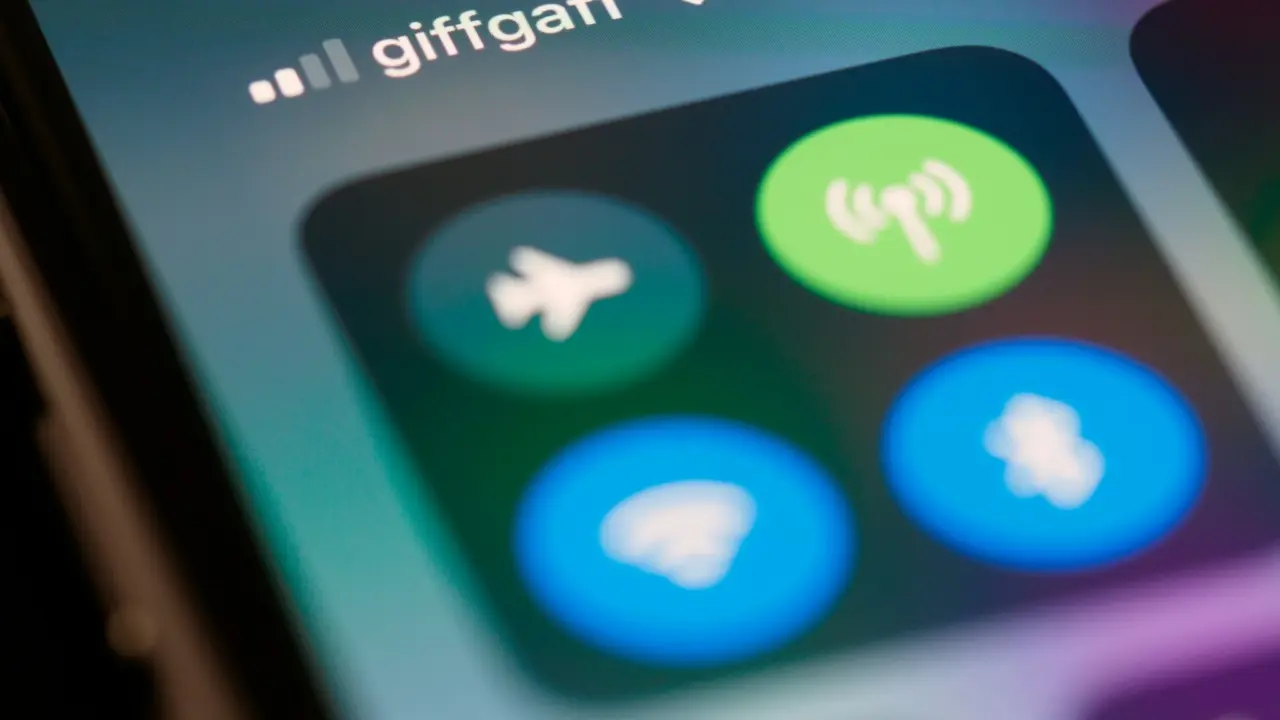
When it activates, the cellular-data symbol appears in the status bar. Apple also warns that remaining connected this way can increase mobile-data consumption, although it says the increase should be relatively small for most users.
So the switch that feels mysterious may actually be an intentional attempt to prevent your internet session from failing.
Signal Bars Tell Only Part of the Story
People naturally judge Wi-Fi from the icon at the top of the screen, but network quality involves more than signal strength.
Android devices, for example, can examine several properties of a wireless connection. Android’s official Wi-Fi documentation says its framework periodically polls Received Signal Strength Indicator, or RSSI, along with transmit and receive packet counters and other radio statistics to evaluate the quality of a connected network.
Packet loss is particularly important. Internet communication involves dividing information into small packets that travel between your device and the network. When too many packets fail to arrive correctly, applications must wait for retransmissions or may simply stop responding.
An open-access study examining smartphone Wi-Fi connection behavior found that undesirable packet loss was a major cause of connection problems and linked the losses partly to variations in signal strength.
That explains why “three Wi-Fi bars” does not guarantee three bars’ worth of usable internet. A connection can remain technically alive while performing badly enough that cellular becomes the better option.
Walking Around the House Can Trigger a Handoff
Distance matters because Wi-Fi is a radio signal.
Move away from your router, walk behind several walls, enter an elevator, step into a parking area, or move to another floor and the radio environment changes. Interference and physical obstacles can alter the quality of the connection long before Wi-Fi disappears completely.
Android’s network-selection documentation explicitly uses the example of Wi-Fi quality degrading when a user walks out of range, explaining that Android can avoid a deteriorating network when another suitable connection is available.
Research shows that these changes can even be predicted. A study on seamless Wi-Fi-to-cellular handovers used Wi-Fi RSSI together with smartphone measurements including acceleration, compass readings, step counting, and air pressure to predict a coming Wi-Fi loss.
Using real-world data collected from five smartphone users over three months, the researchers were able to predict Wi-Fi connection loss 15 seconds in advance, reaching precision of up to 0.97 and recall of up to 0.98.
The experiment illustrates why smartphones increasingly treat connectivity as something to manage proactively rather than simply waiting until one network completely disappears.
Moving Between Wi-Fi Access Points Can Briefly Use Cellular Too
The switch can also happen inside offices, malls, hotels, airports, or homes using several mesh access points.
Your phone may need to leave one Wi-Fi access point and attach to another. During that transition, cellular can temporarily become the default path.
Android’s documentation describes older “break-before-make” Wi-Fi switching, where the existing Wi-Fi connection is disconnected before the new one becomes available.
Google explains that under this process the default network can change from the old Wi-Fi connection to cellular and then back to the new Wi-Fi network, causing the device to use cellular data briefly during the transition.
Newer Android implementations can support “make-before-break,” which attempts to establish the new Wi-Fi connection before abandoning the previous one, reducing interruptions.
A Strong Router Signal Can Still Hide a Bad Internet Connection
Another confusing situation occurs when you are standing beside the router and your phone still prefers mobile data.
The problem may not be wireless signal strength at all.
Your router itself could have temporarily lost its connection to your internet provider. A public Wi-Fi network might require a login page that has not been completed. A crowded router could be struggling with many connected devices. The wireless link between phone and router may remain excellent while the path from router to internet is effectively unusable.
That is why modern operating systems attempt to evaluate actual connectivity rather than blindly trusting the Wi-Fi icon.
Preventing the Switch Can Come With a Trade-Off
On an iPhone, users who want stricter control over mobile-data consumption can disable Wi-Fi Assist. Apple instructs users to go to Settings > Cellular or Mobile Data, scroll down, and switch off Wi-Fi Assist.
Doing so may save cellular data, but there is a trade-off: when Wi-Fi deteriorates, the phone may simply remain on the poor connection instead of rescuing the session with 4G or 5G.
The sudden appearance of mobile data is therefore not necessarily evidence that your phone has “forgotten” Wi-Fi.
Often, it means the device has decided that remaining technically connected to the router is less useful than moving your internet traffic elsewhere.
The Wi-Fi icon answers one question: Can I still communicate with this wireless network?
Your phone is quietly asking another: Is this still the best way to reach the internet?
When those answers stop matching, mobile data can take over—sometimes before you even notice that Wi-Fi was having trouble.